
Organizational Entity: Routes
Routes are a special type of group.
A route is used to organise buildings and elevators within a group based on their location. You can use routes if your technicians cover specific areas for maintenances, as a way to coordinate them.
How to manage routes
Create routes through the desktop application
- Main form
- Buildings
- Route management
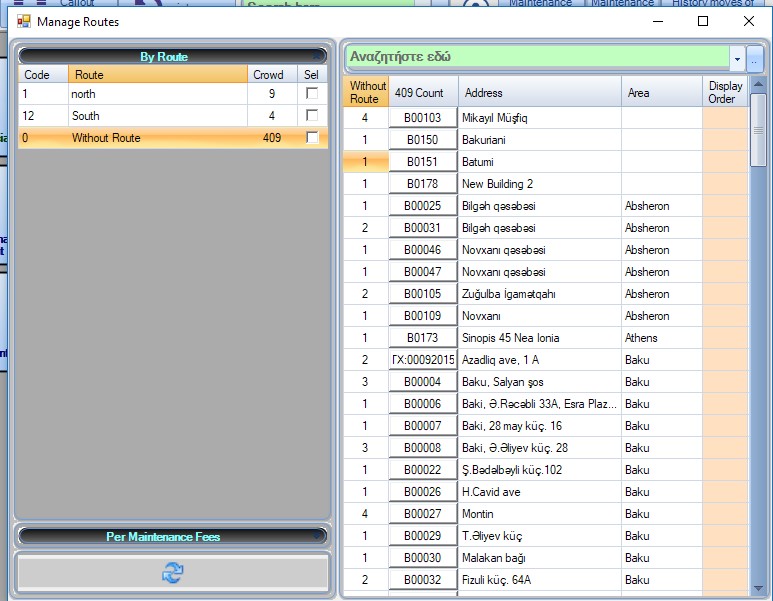
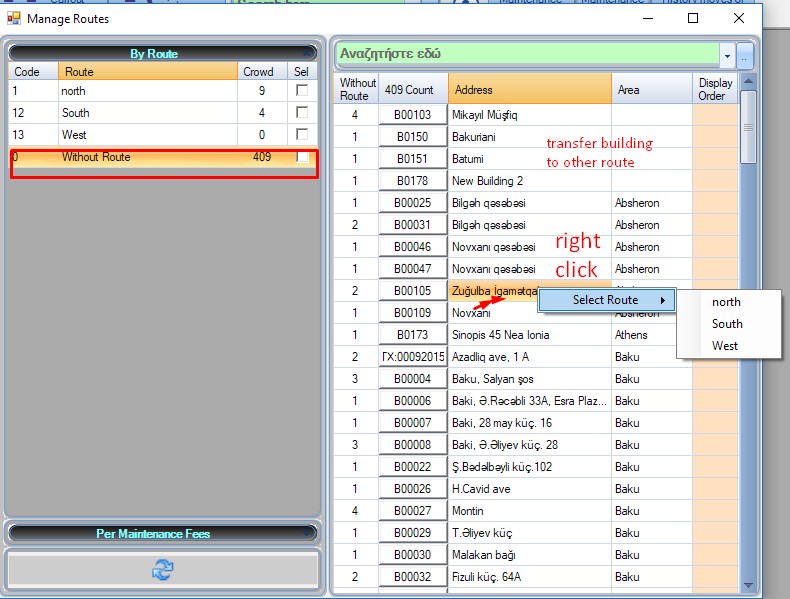
You can create route groups on the desktop application.
- By default, there is one route that contains all buildings without route.
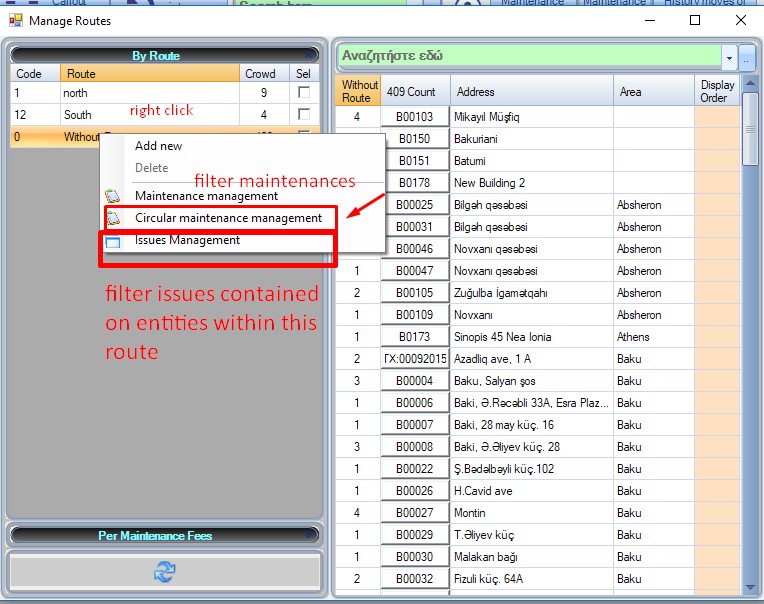
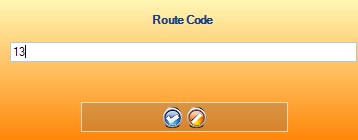
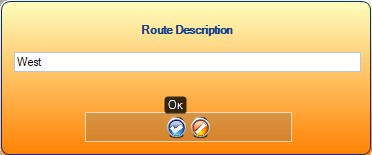
- Add new route by right clicking on the list and selecting “Add new”.
- You can transfer buildings from one route to another, by right clicking on the building and selecting the route you want to transfer it to.
- To delete a route, you must remove its buildings by transfering all of them into another route (or the default one).
Manage route buildings through the map
- Main form
- Units
- Routing web version
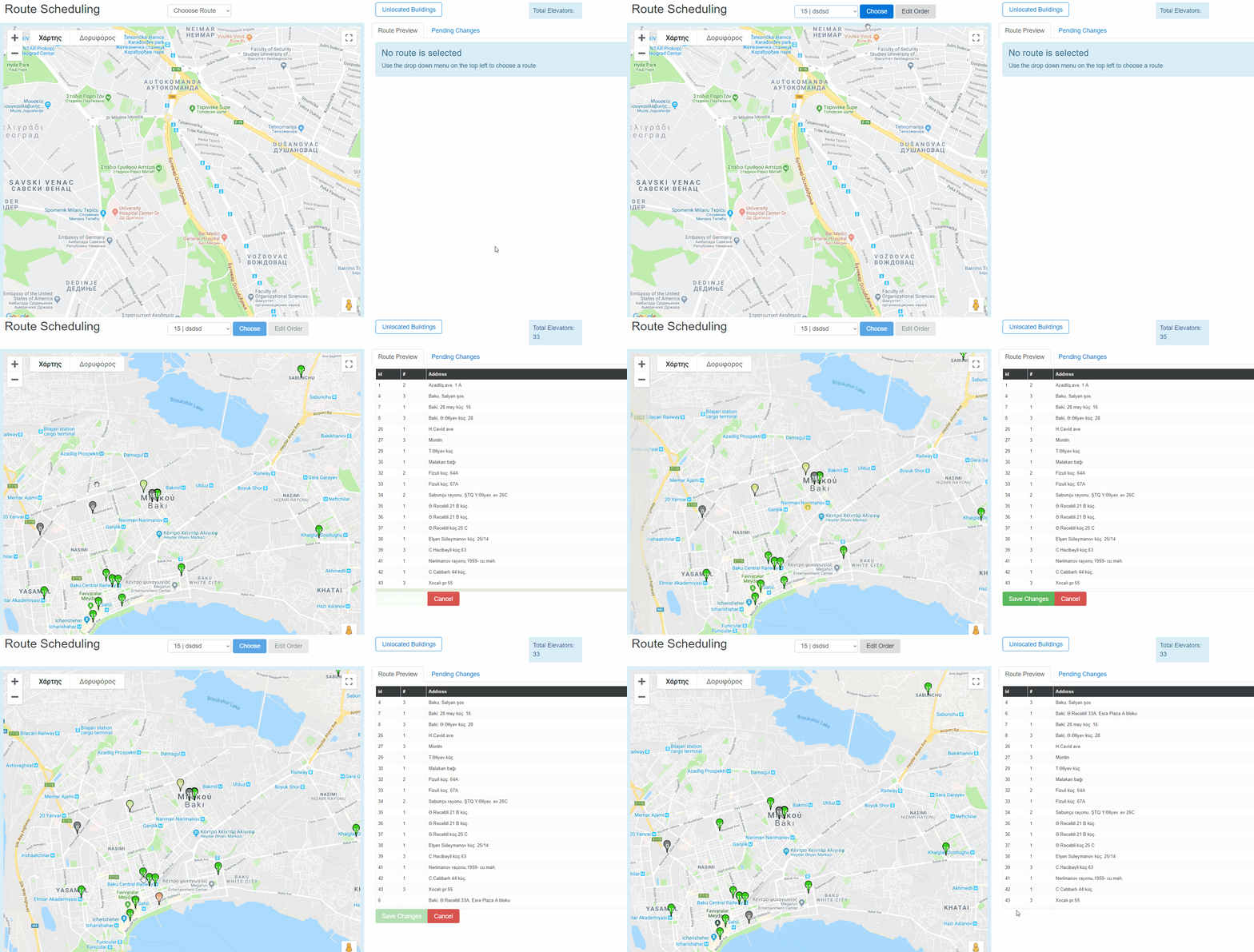
You can group your buildings on the map.
- Select the route that you want to manage.
- Every located building that doesn’t belong to a route will be displayed on the map with a grey pointer.
- Every building that belongs to your route will be displayed as a green pointer. Its number is the ID of the route.
- You can add buildings to your routes by clicking on the pointer on the map, and clicking on “Add to route”. The newly added building will be displayed on the table on the right.
- You can remove a building by clicking on its pointer and selecting “Remove from route”.
- The removed buildings will be displayed as a red pointer.
Edit the route order
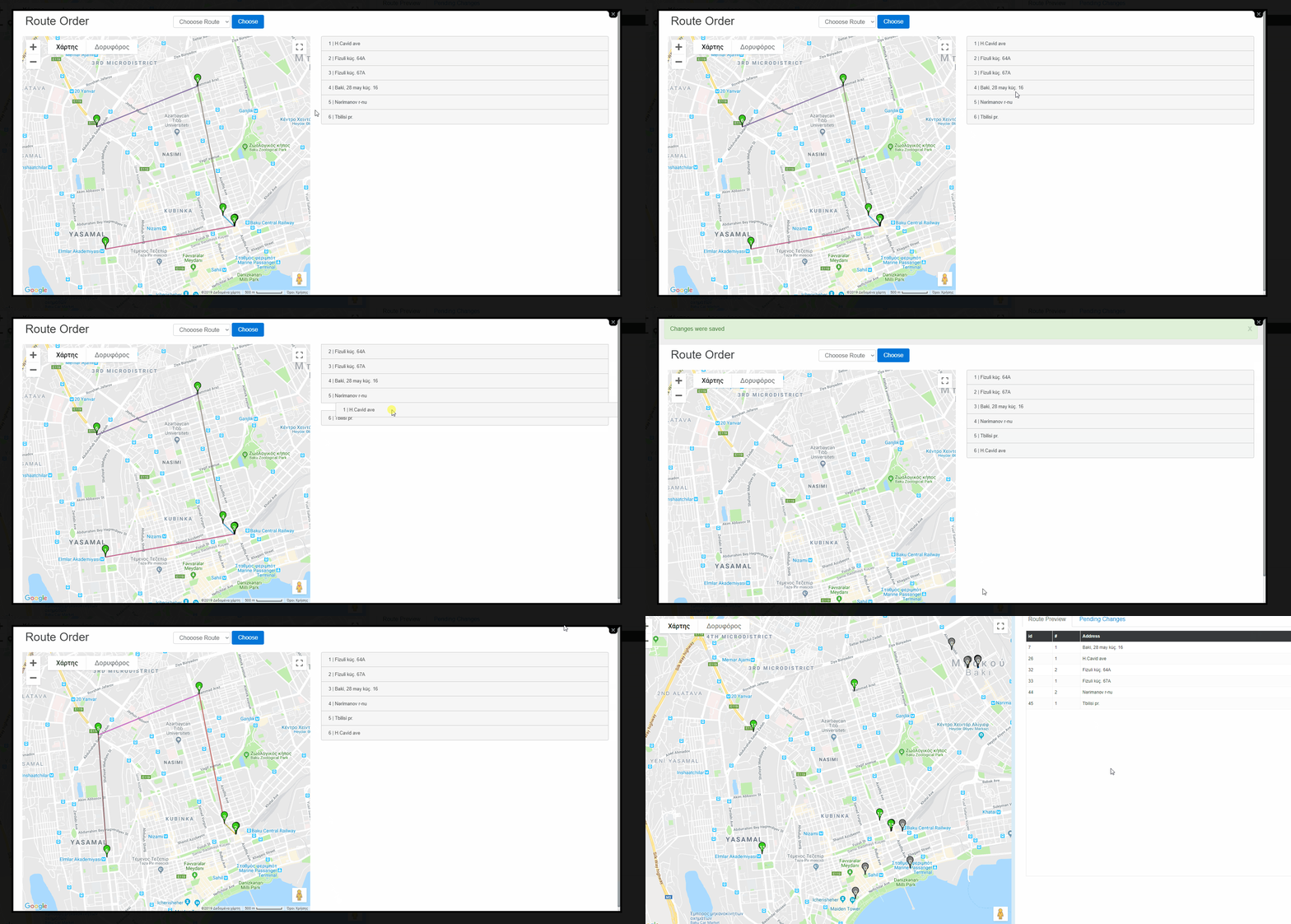
When you have selected a route on the web enviroment, the button “Edit order” will appear on the top left, next to the selection. When you click on it a window will pop up. From there, you can drag and drop the items on the list on the right. You can see changes to the route on the map.
Click on “Save” when you are done.
How tο locate buildings
Locate buildings
- Main form
- Units
- Routing web version
- Unlocated buildings.
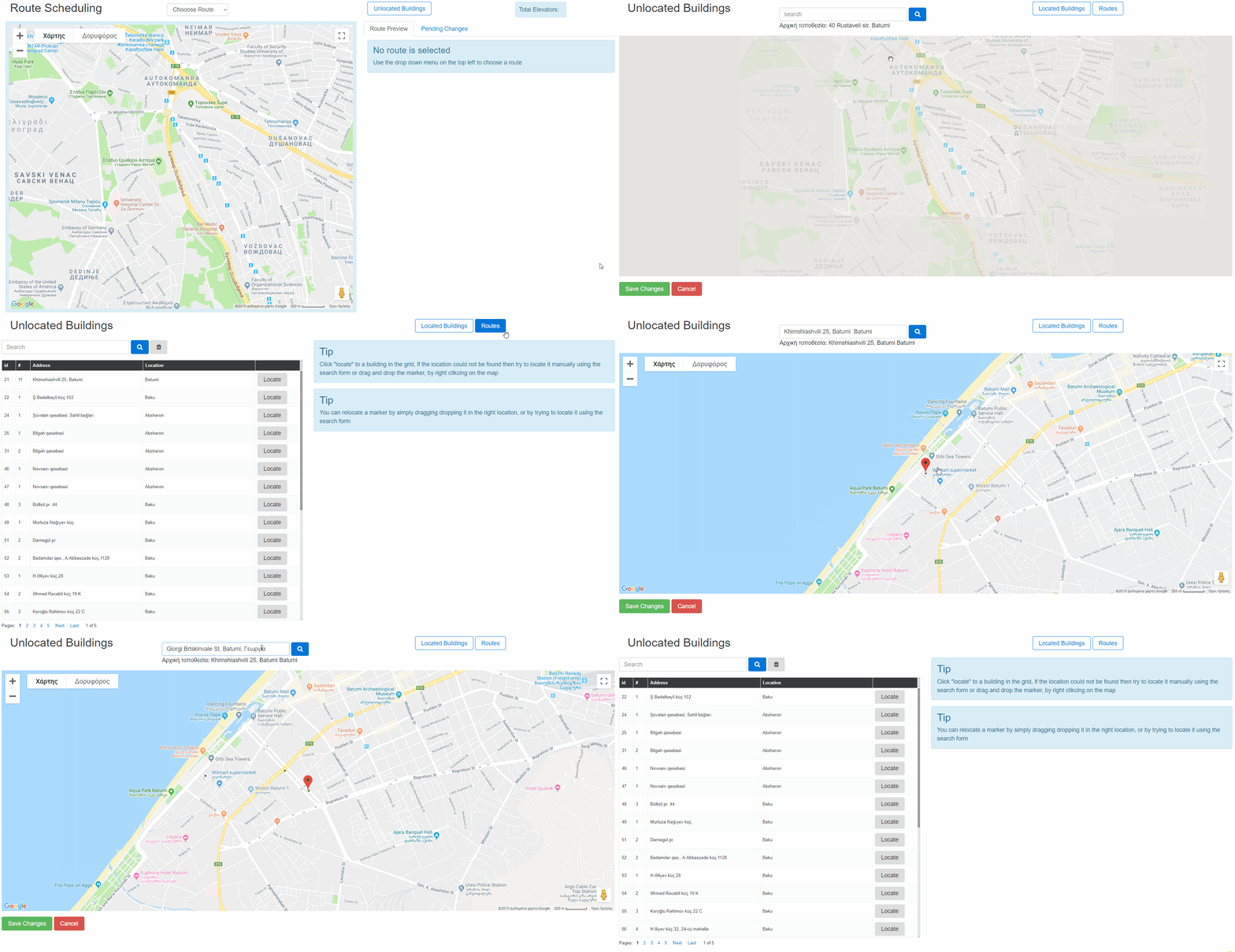
When you open the route management in the web vesion there is a button at the top right called “Unlocated buildings”. By clicking on it, you will be transfered to another page where every building that is not located is listed.
- Click locate on a building.
- Using google maps, Winlift will try to locate the building based on the address. If the location is correct, click “Save”.
- If the location isn’t correct, drag and drop the marker somewhere else, or right click on a location and select “locate here”, or search for another new address using the search bar.