
The Units Registry shows all lifts with key details like customer, building, technician, status, and maintenance info. Use filters to refine results or bulk-edit fields via checkboxes
Main Menu -> Units -> Registry of all units
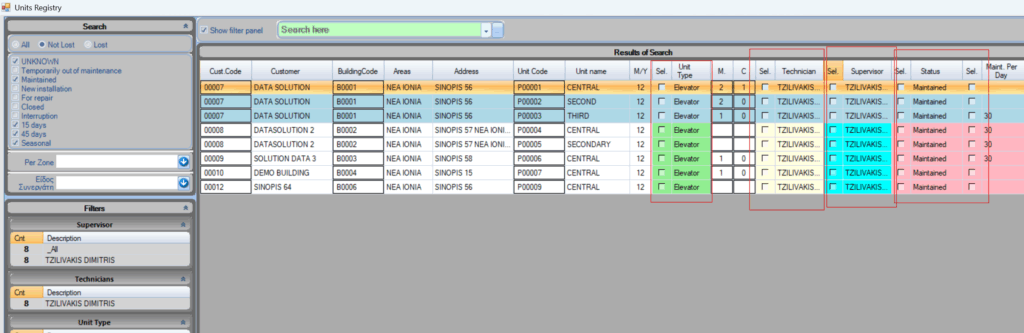
Key Features:
- By default, the list shows only the units that are actively maintained.
- You can use the filters on the left to include units with other statuses (e.g., out of service, closed, etc.).
- You can also filter by zone, supervisor, technician, unit type, and more.
- You can bulk edit all the fields that has a checkbox next to them.
- You can open the unit form by clicking on the unit code (or the building form or the customer form)
- Once you finish with edits, click the Check button on bottom left
Information Displayed:
For each unit, the form shows:
- Basic customer and building details
- Technician responsible for maintenance
- Supervisor assigned to the unit
- Status of the unit (e.g., maintained, out of service)
- Number of maintenance visits and callouts
- Maintenance frequency in days (how often maintenance is performed)
- Suggested maintenance day of the month (overrides frequency if set)
- Route to which the unit belongs
You can also open the related forms for Customer, Building, or Unit by clicking on their respective codes in the list.
Bulk Editing:


You can bulk edit any field that has a checkbox next to it:
- For each unit, locate the checkbox in the column you want to edit.
- Check the checkbox in the desired column for that specific unit.
- Once you’ve checked the boxes for all the units and columns you want to edit, right-click on the checkbox at that same column and select the desired action.
⚠️ Note:
There are multiple checkboxes, one per editable field per unit. You must explicitly selectcheckbox in the correct column for each unit you want to update.