
Periodic Tasks
Most tasks need to be performed repeatedly
It’s easy to remember the checks needed in every maintenance because they are predefined. But what happens when these checks need to performed in longer time intervals? When you have hundreds of elevators with tens of different checks, it is very difficult to keep track of them manually and it’s natural to make mistakes.
Examples of periodic tasks:
- Check control panel’s battery: every 3 months.
- Cleaning of the pump container: every year.
- Driver oiling: every 2 months.
- Check shaft lighting: every 3 months.
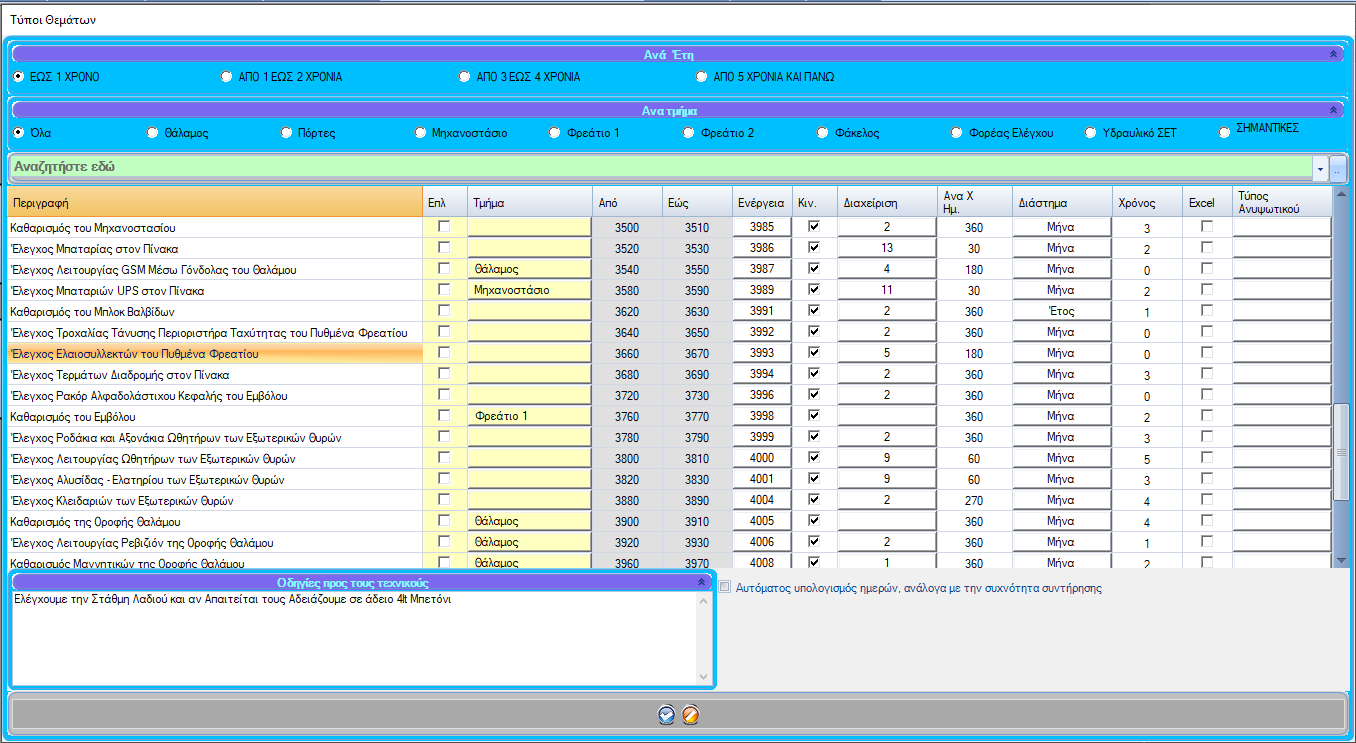
Periodic tasks list
- Main form
- Issues
- Types of
- Periodic Tasks
- Description: Name of the periodic task.
- Part of unit: The elevator part that the task refers to.
- Action: The actions of the task. Edit by clicking.
- Mobile: If the task will show up on the technician phone application.
- Management: List of elevators having the task.
- Renew every X days.: The amount of days needed to repeat the task, its period.
- Notify technician on: When the technician will be notified, i.e. start of the month or on a specific day.
- Time needed: The minutes needed to complete the task.
- Excel: -under construction-
- Unit type: The type of the unit that the task refers to.
- Instructions to technicians: A description of the task, shown on the technician phone application.
- Automatic calculation per days: If the task needs to be performed on every maintentance.
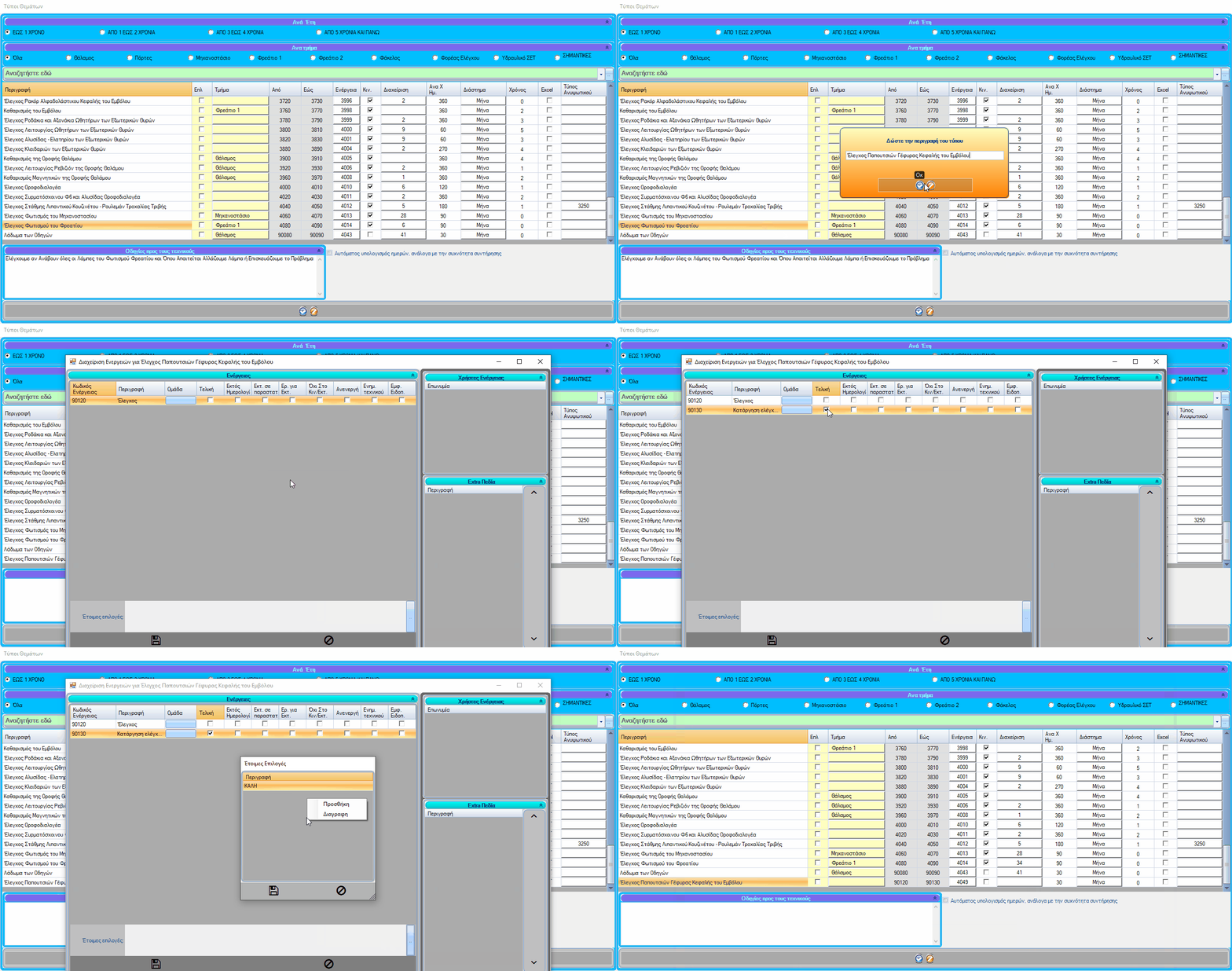
Adding a periodic task
To add a periodic task, right click on the list and select “Add”.
Actions
By clicking on the “Actions” field, the actions form shows up. You need at least two actions for a task, usually one called “Check” and a final one (by selecting Final) called “Cancel check”.
Caption of next action (Actions form)
By pressing the button with the three dots, you can add captions that the technician can select on the phone application.
You can edit the rest of the fields by double clicking on them.
Assign a task to a Unit/Lift
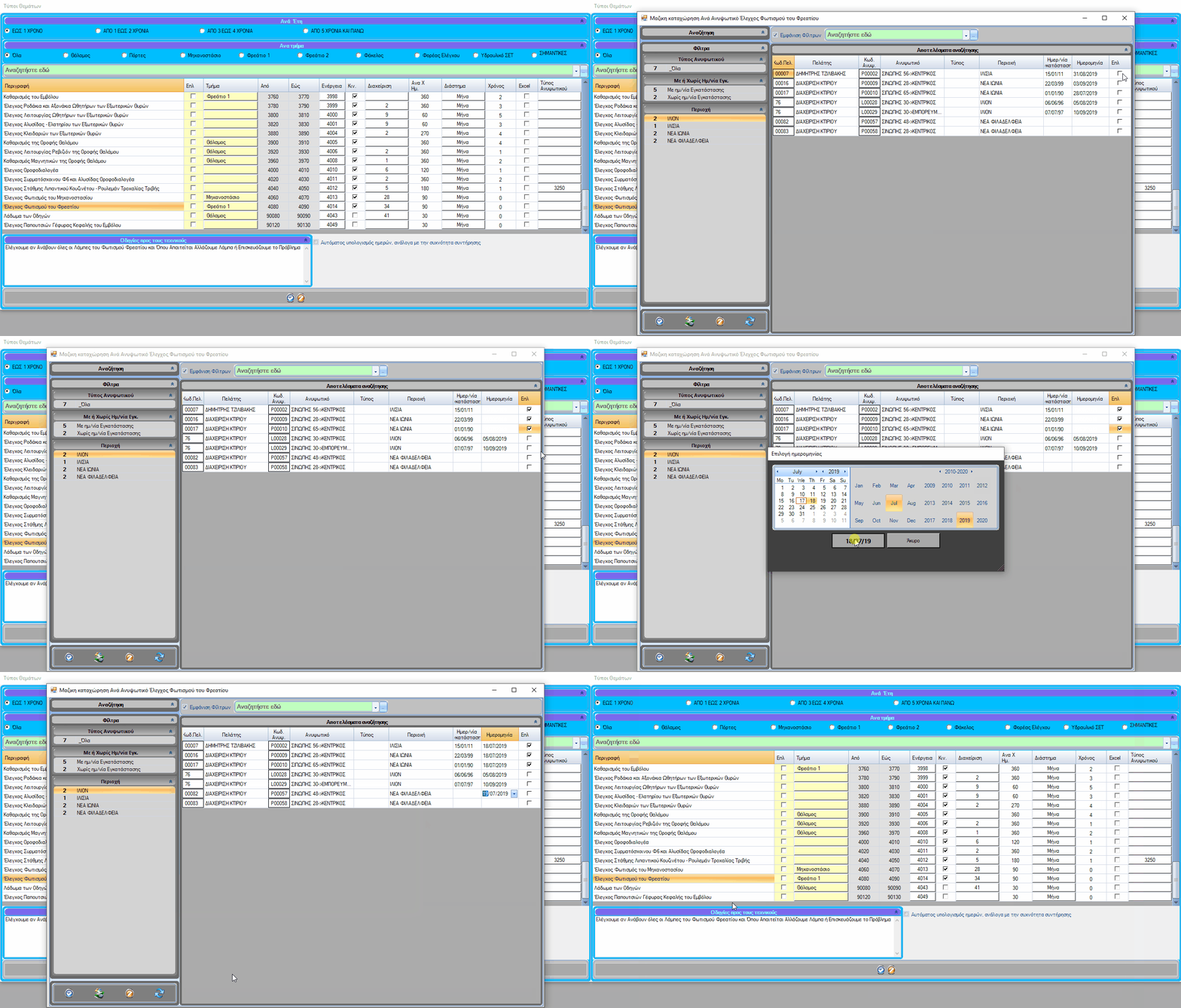
To assign a periodic task to lift, select the task and right click on it. Selecting “Not assigned to issue type per unit” will bring up a list of all the elevators that don’t have that task assigned to them.
Assigning a group of elevators can be done by selecting the column “Sel”, right clicking and choosing “Massive date import”.
To assign a single Unit/List to a task, you can select the date from the “Date” column.
Press the “Okay” buttom to save the changes and choose a technician. The techinician can be chosen randomly, the application will notify all the technicians.
Technician phone application
- Current: Shows all the tasks that need to be performed with their descriptions. By ticking a task and choosing “Save”, the task is considered completed.
- Later: Tasks that need to be performed on a later date and have been assigned to an elevator.
- Never performed: The tasks that were never assigned to elevators. The technicians can assign elevators to them from the application.