
Organizational Entity: Issues
Issues, keep track of problems.
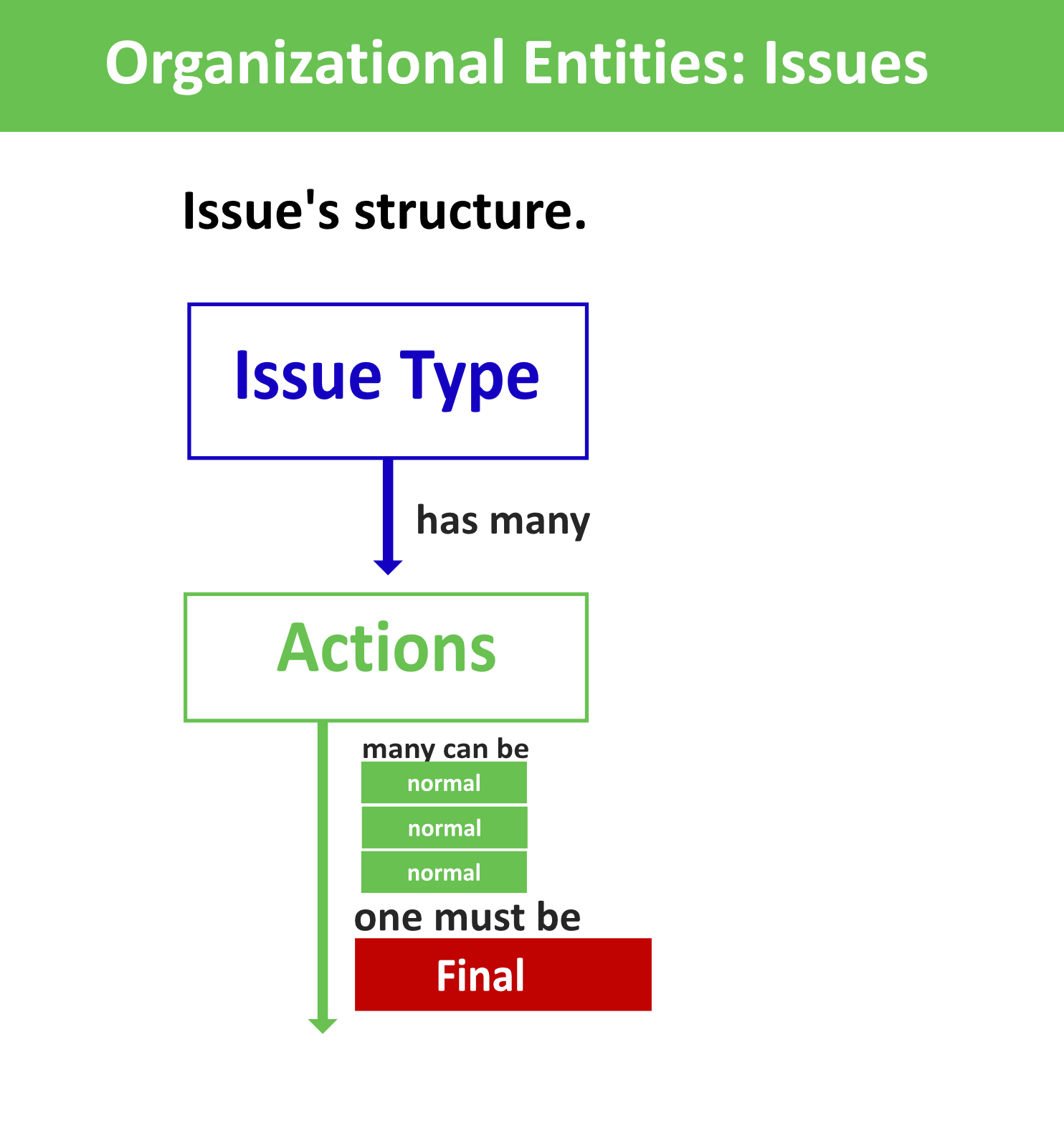
Issues are essentialy a way to put extra tasks that need to be performed. They have a very specific structure: which you can see on your right.
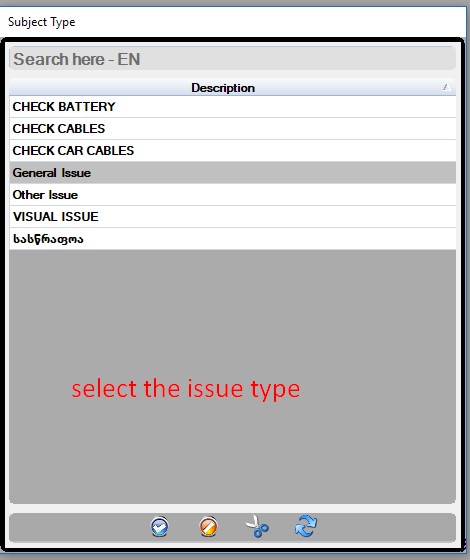
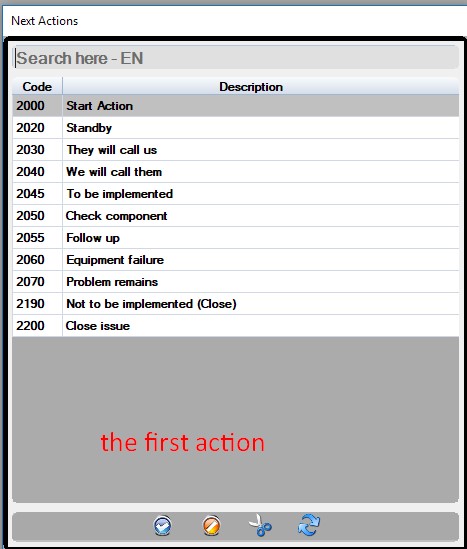
You can have many types of issues. Each type of issue has steps that need to be followed in order to be solved. These steps are called actions. You can have as many actions as you want and when the issue is resolved, there must be an action that is going to be “final”. You can have many final actions since an issue can be resolved in multiple ways.
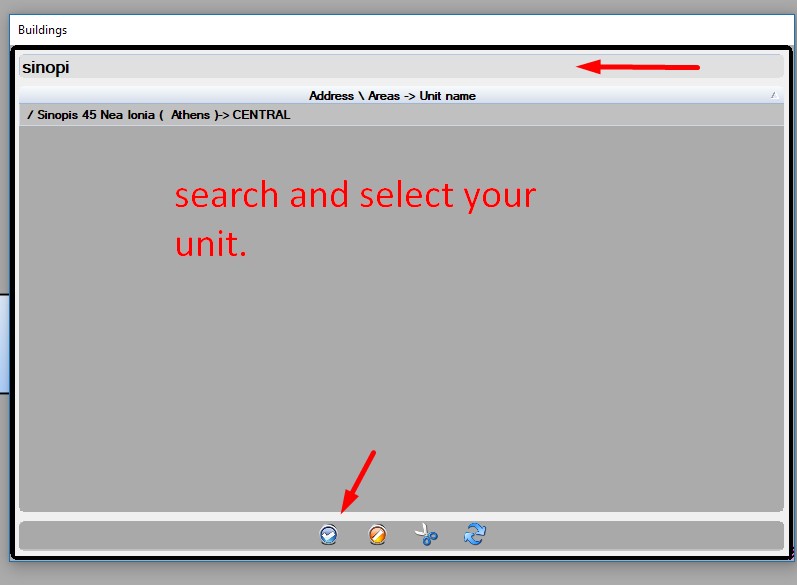
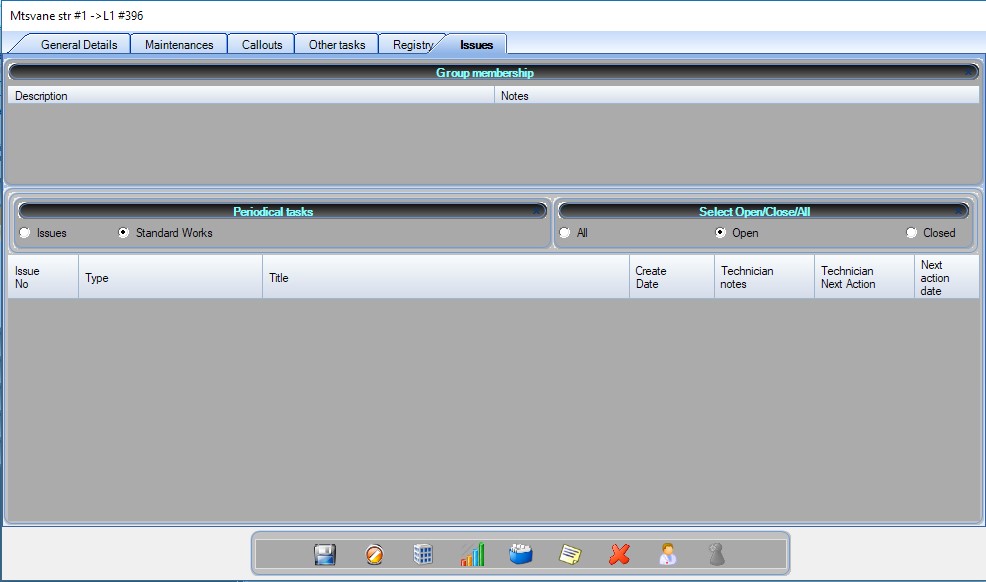
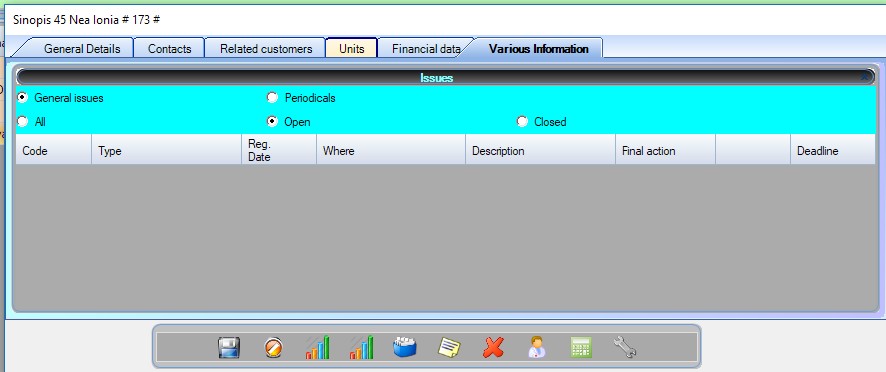
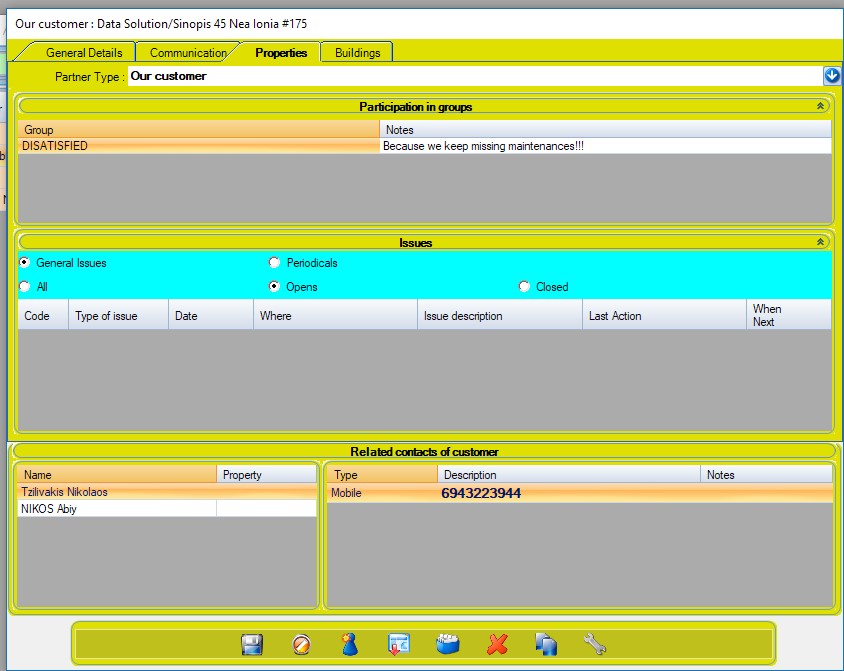
You can assign issues to customers and units (lifts) or even specific callouts or other tasks. Each action has an overdue date. When this date comes and you haven’t moved the issue to another action or haven’t closed it, you will be notified via the notfication system.
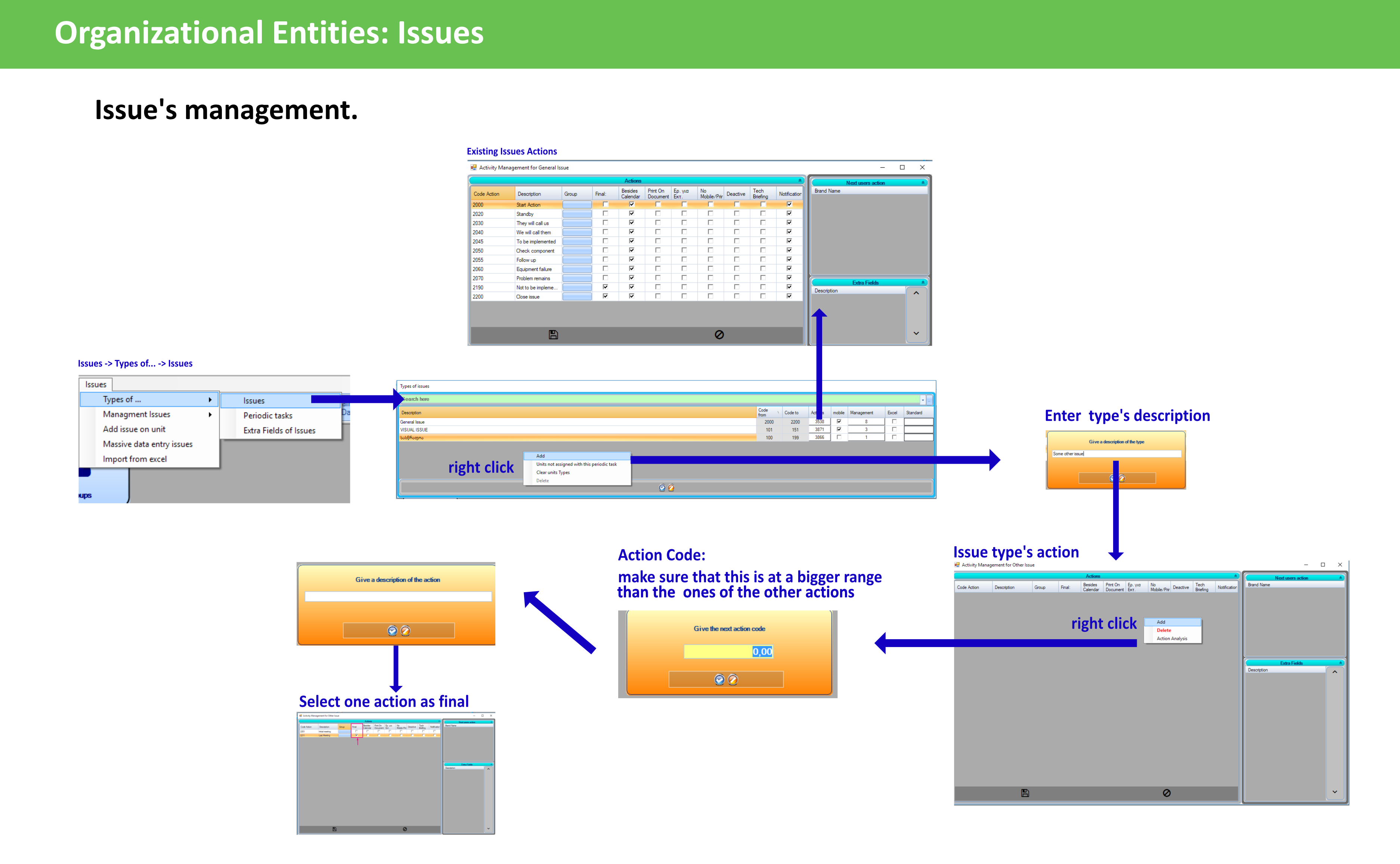
Each action holds a unique code, which is also its order. We suggest using the recommended code. If it is already taken, the next one should be used (e.g. recommended code: 100 is taken, manually put 101). Ιf the code is taken then it will display a notice.
How to edit issue types
Issue types management
- Description: Name of the issue
- Code from – Code to: Max and min codes of your actions
- Actions: Shows Action management window (see below)
- Mobile: Make the issue available on the mobile application
- Management: See opened issues of this type
- Excel: -coming soon-
- Standard: -coming soon-
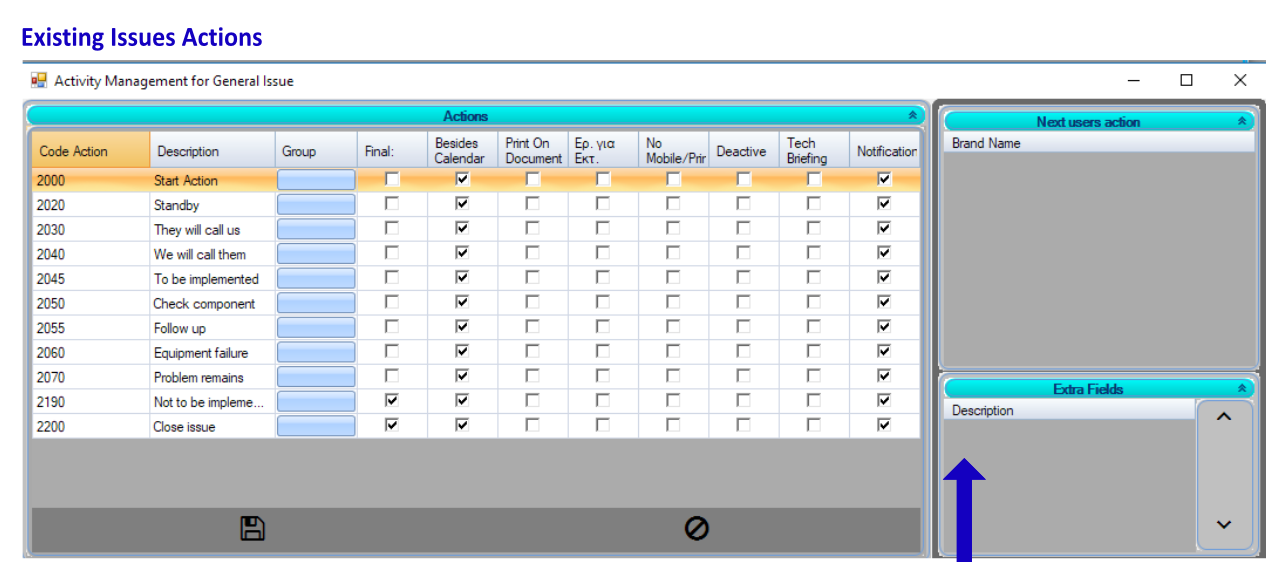
Action management
- Code Action: The unique ID of the action
- Description: Name of the action
- Group : – coming soon –
- Final: If the issue is final
- Out of calendar : – coming soon –
- Print on Document: Show action on reports and prints
- Deactivate: Make the action invisible, but do not delete it
- Notify Technician: Send notification to technician about the maintenance
- Notification: Show action on Winlift notification system when it needs to get executed
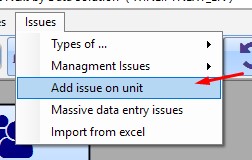
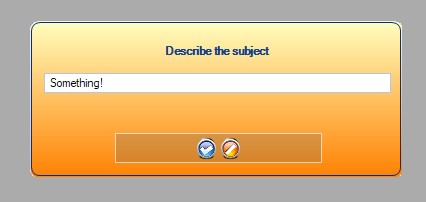
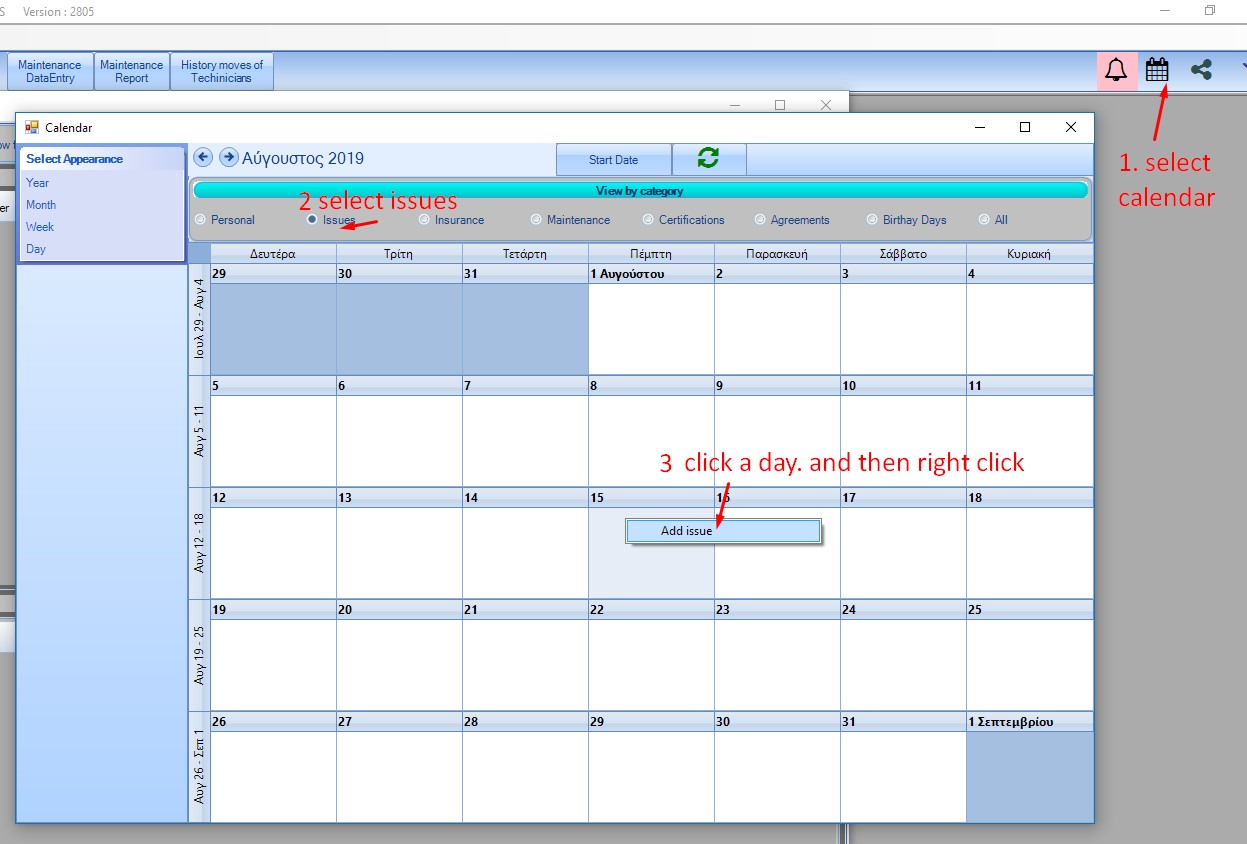
How to add a new issue
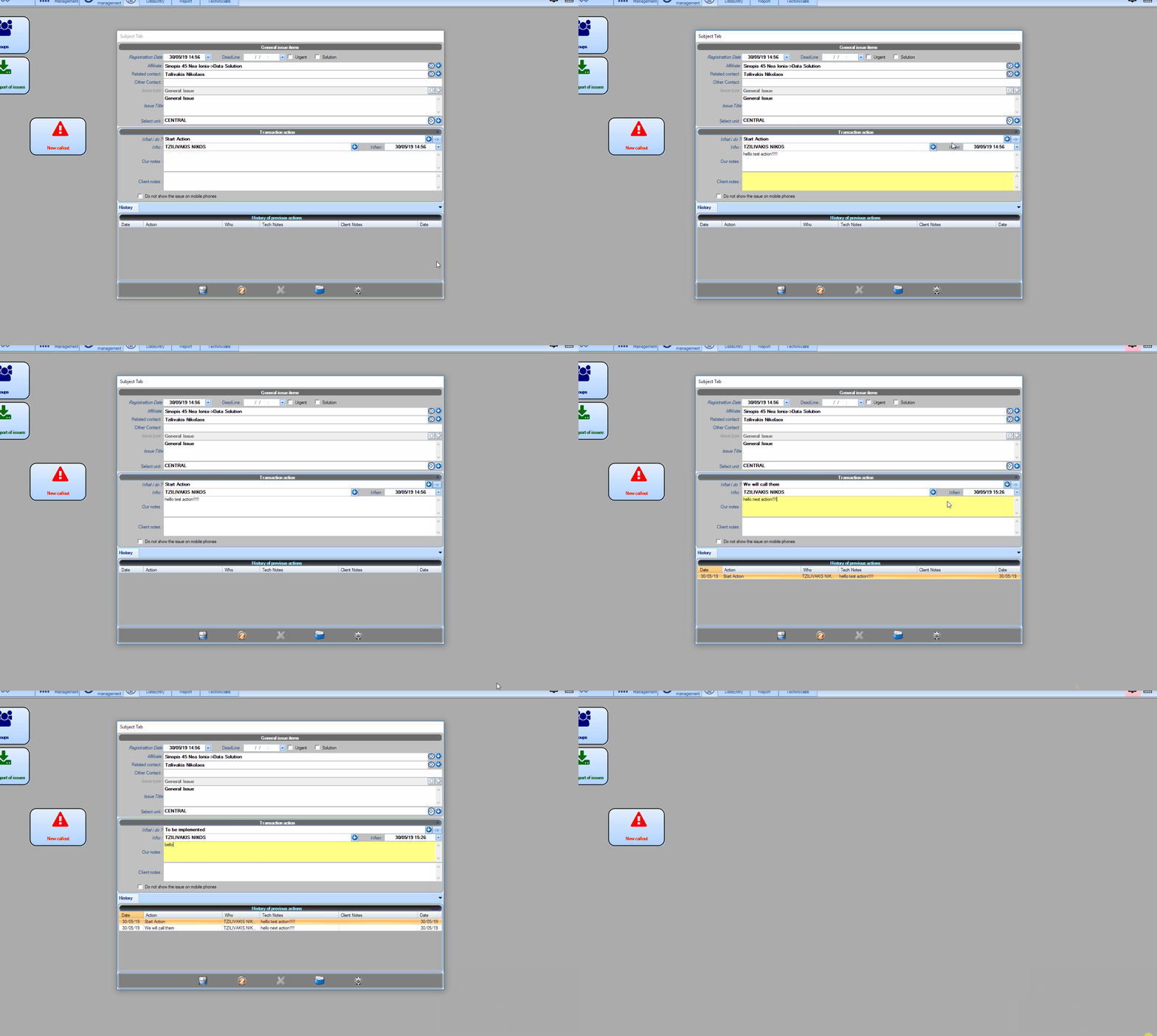
How to manage issues
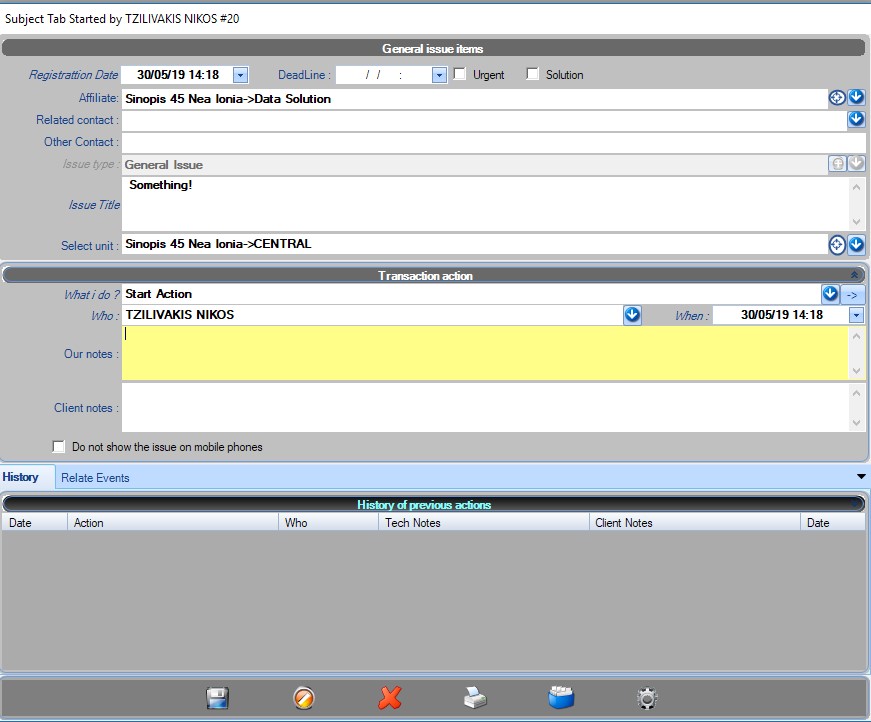
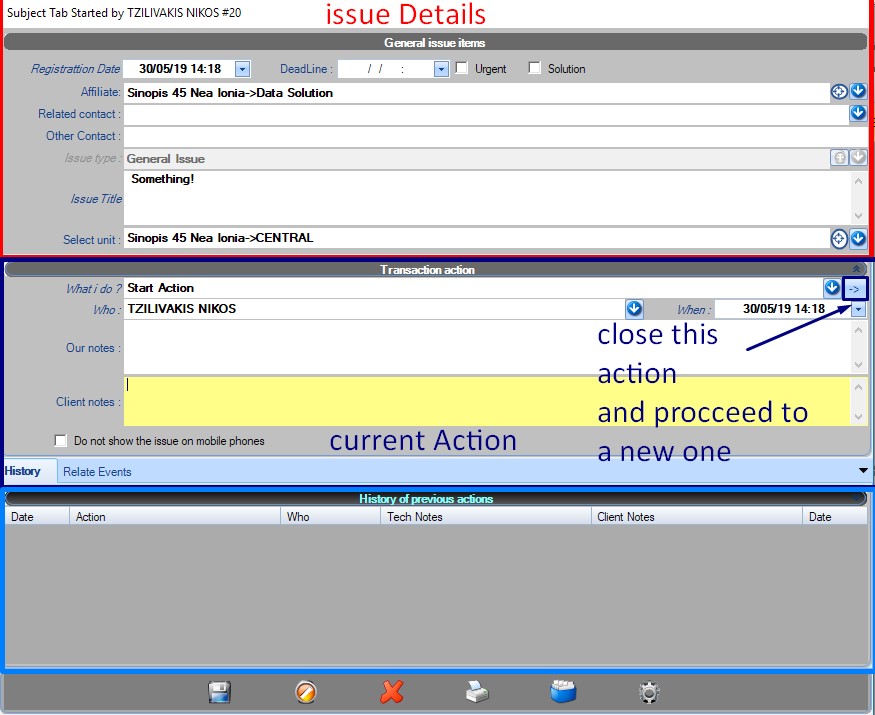
The Issue Form
Issue Details
- Registration Date: When the issue was registered
- Deadline: Ιf the issue has a deadline
- Urgent: If the issue is urgent
- Solution: When the issue is a solution to something (you will propably never need to use this)
- Affiliate: The customer
- Related Contact: Can select a contact related to your customer.
- Other Contact: Is a text field where you can add another contact that is not registered in the application.
- Issue Type: Can select the type of the issue.
- Issue Title: The title/description of the issue
- Unit: The unit/lift related to the issue.
Curent Action
- What I do: The action
- Who: The person responsible for the execution of the action
- When: When the action shall be performed (you will also recieve notifications for that)
- Our Notes: Extra information
- Client Notes: Information given by the client
- Do not show on mobile: Do not display the action on mobile
Move to next action
In order to indicate that the current action is finished and to move to the next action, you will have to click the arrow button
.
When you do that, you will have to enter the next action. The current action will be moved to the history, and the current action area will be cleared.


