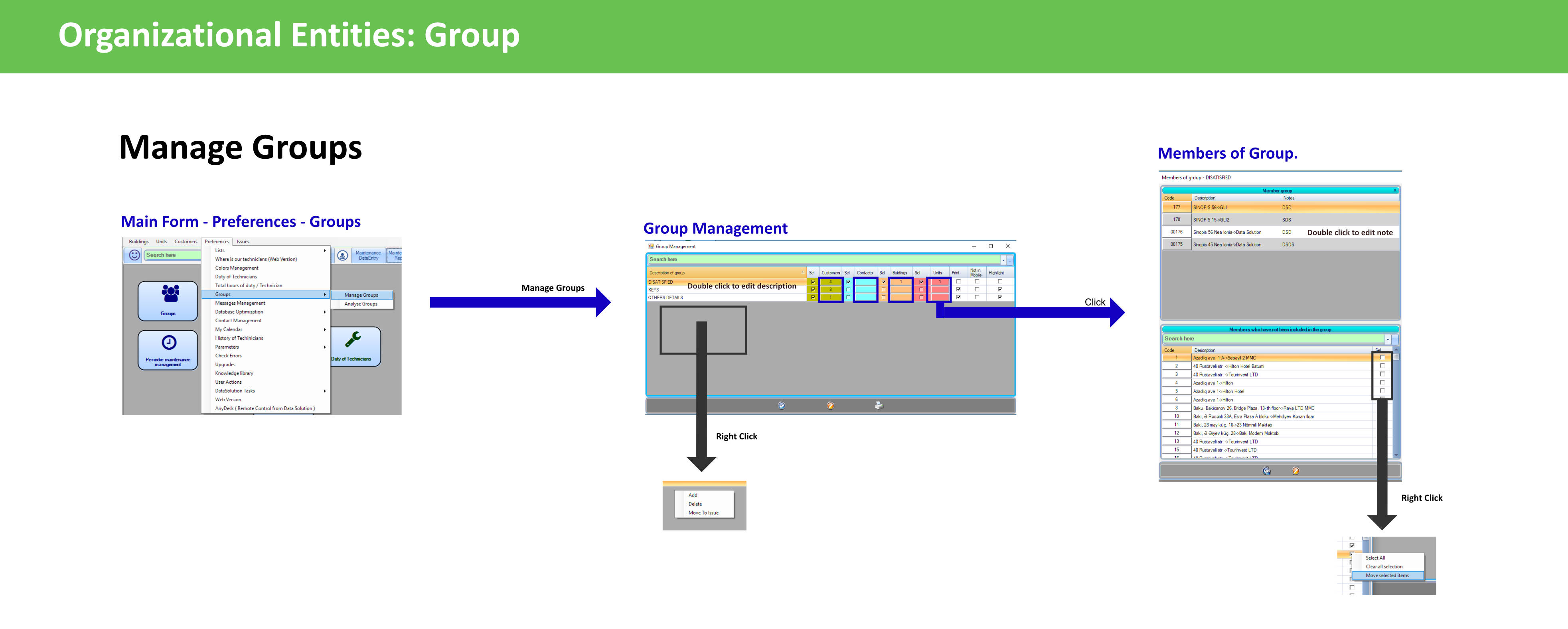
Groups are a flexible way to add additional, categorized information to the following main entities in WinLift:
Customer
Elevators (Units)
Buildings
Contacts
You can think of groups as enhanced metadata fields that can be used both for organizational and operational purposes. Depending on how you use them, groups can behave either as categories, extra fields, or a hybrid of both.
Purpose
Categorize and segment your entities (e.g., satisfied customers, buildings with special access instructions).
Attach additional notes per entity.
Use for filtering inside forms.
Show Additional information in the mobile application
Managing Groups
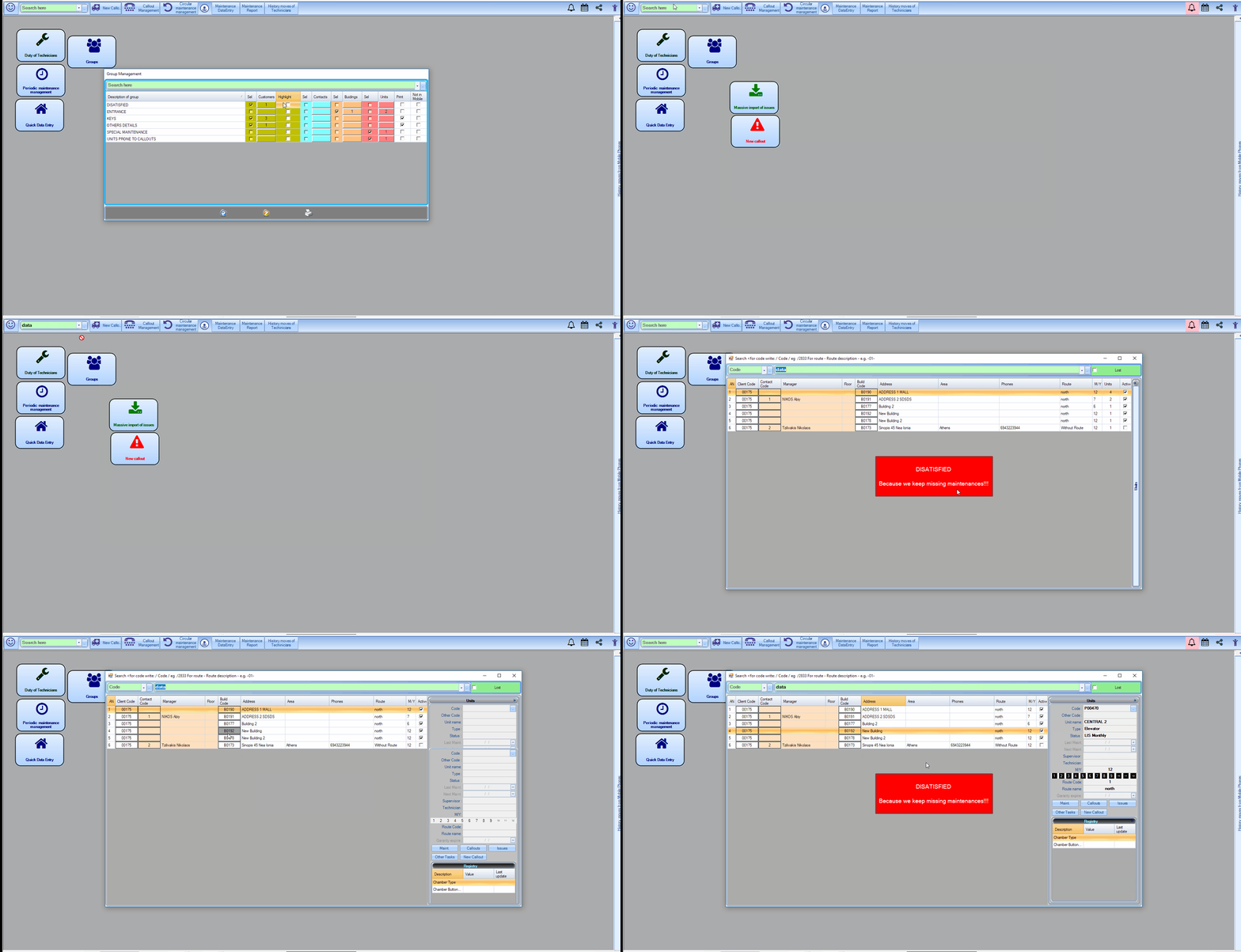
Group Options
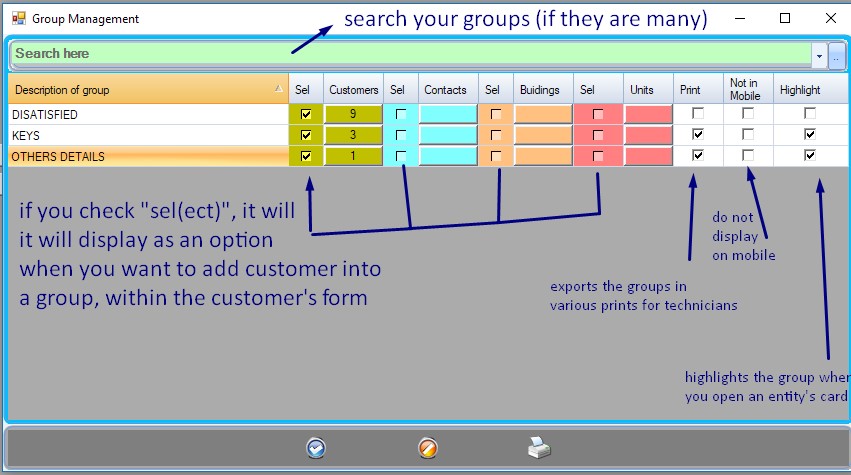
Edit Name: Double-click on the group’s description.
Right Click inside the group grid to create a new group
Add Entities: Use the button under each entity column. The number of attached entities is displayed.
Option
Description
Sel
Makes the group selectable from the entity’s main form.
Highlight
When enabled for customers, shows the group and its note upon opening a customer form.
Print
Includes the group and note in exported reports. Useful for technician prints.
Note in mobile
Hides this group in the WinLift Next mobile app.
Add entities to groups
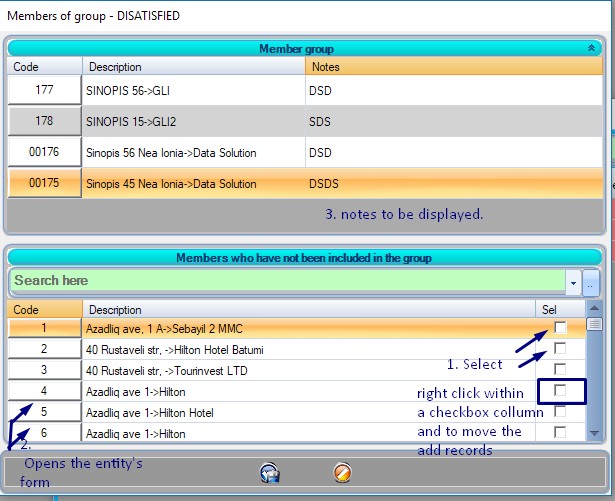
Members of group: displays the entities already inside the group.
Members who have not included in the group: the entities that are not yet inside the group.
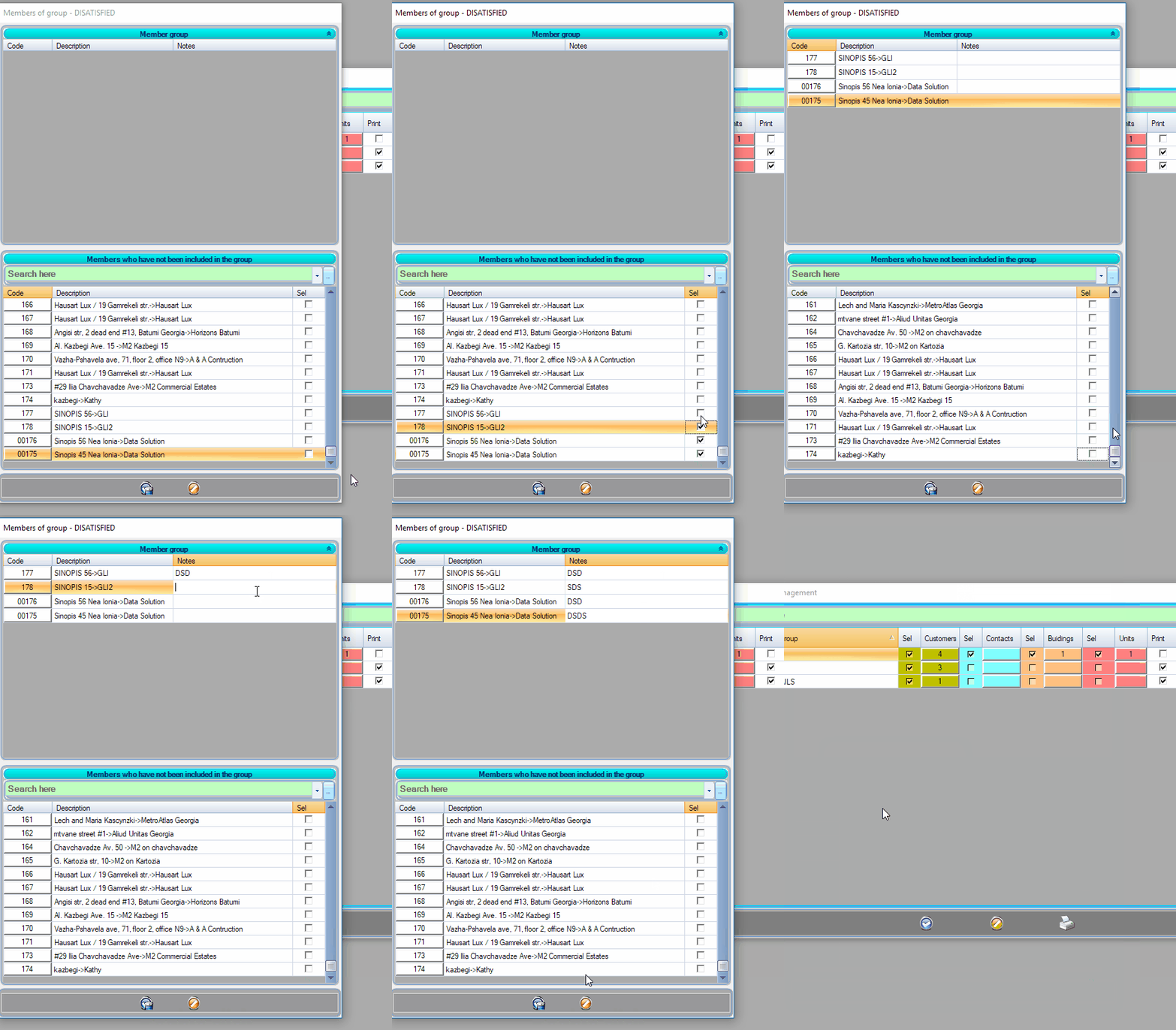
Sel Check “Sel” in the second part, to select the records that you want to add to the group, then right click on one checkbox and click “add selected”
Code At any time click the code button to open the form of the entity.
Notes you can edit the note of each entity bydouble clicking.
You can also add/edit an entity’s group from their form or the main search.
Remove Entities from groups
Remove an entity by right clicking to it in the member group section
You can also remove an entity from a group from the entity form.
Examples
1. Group Style Categorization
Example: Organize customers based on their satisfaction:
Create a group: SATISFIED → Attach relevant customers.
Create a group: DISSATISFIED → Attach others.
2. Extra Field Style Metadata
Example:
Provide additional context to buildings:
Create group: ENTRANCE FROM:
Add buildings and use the Note field, e.g., “enter through back door”.
3. Hybrid Style (Group + Note)
Example:
Track customer dissatisfaction with reasoning:
Make a DISSATISFIED group.
Add customers and fill Note with specific feedback (e.g., “Late support response”).
Where groups are used
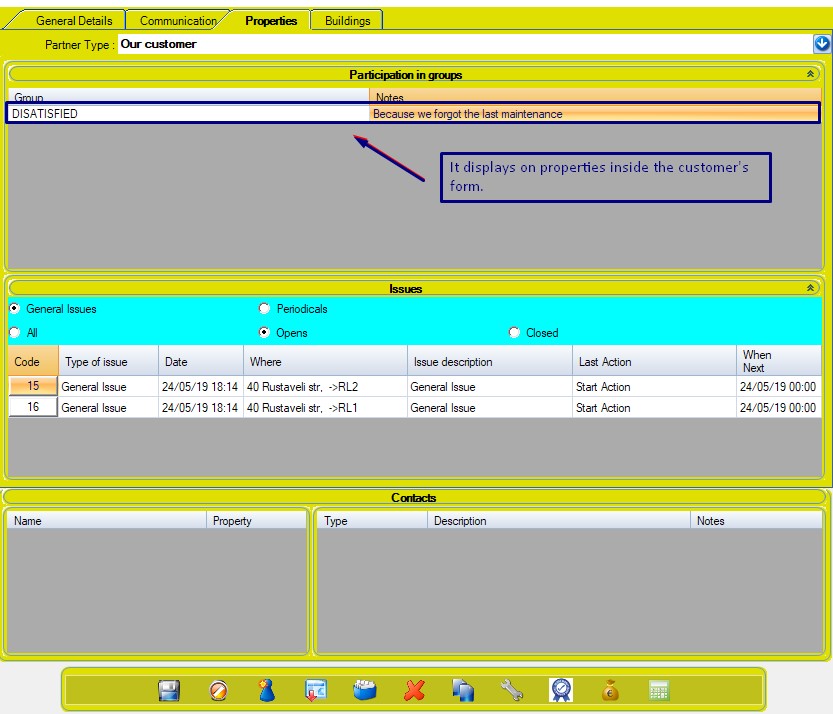
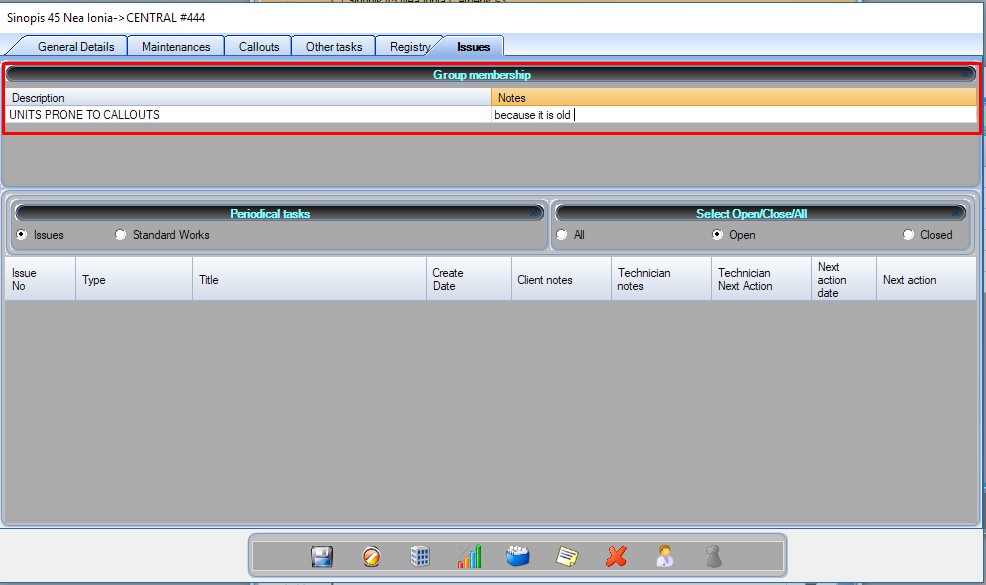
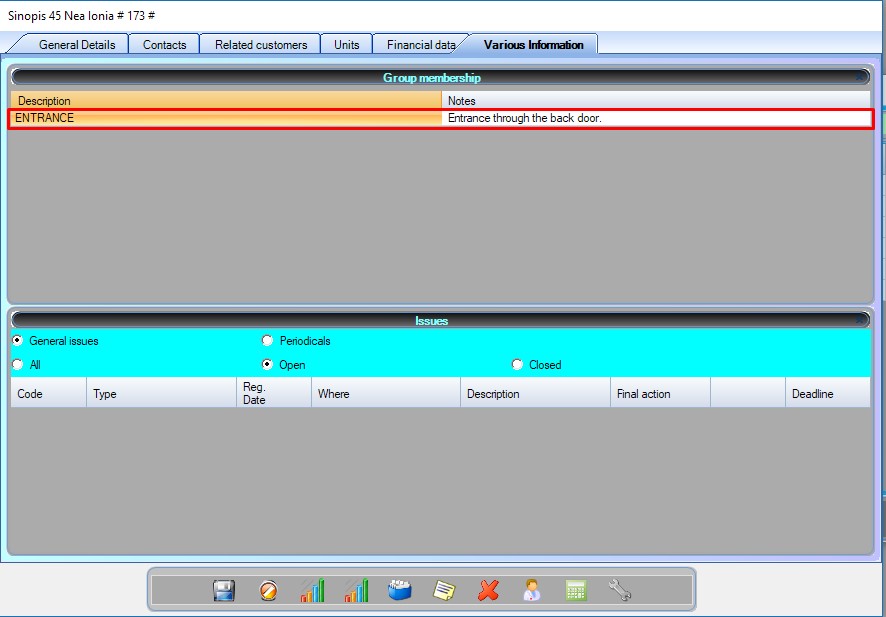
Within main entities.
Every group “sel” checked for its corresponding entity, in the group manager you would be able to add an entity to this group directly from the entity’s form. or remove it from a group
Φόρμα Πελάτη -> Διάφορες Πληροφορίες
Unit/Lift Form: -> Θέματα
Κτήρια -> Διάφορες Πληροφορίες
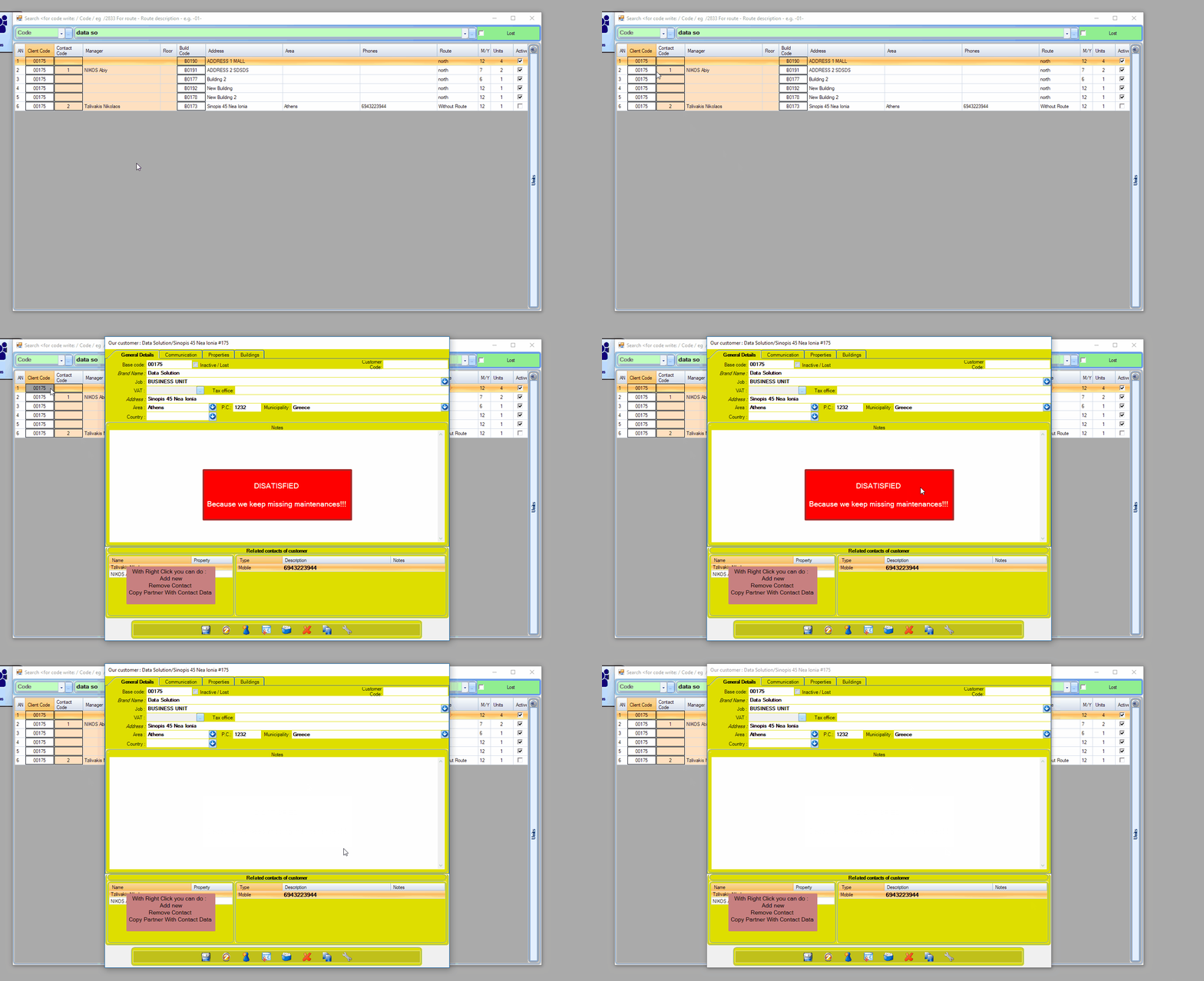
Highlights in search / when opening Customer Form
By having highlight enabled within “groups management” you will see notifications every time you opening a customer.
Highlights the group and the note whenever we open a customer’s card
Highlights on search whenever clicking on a customer’s building
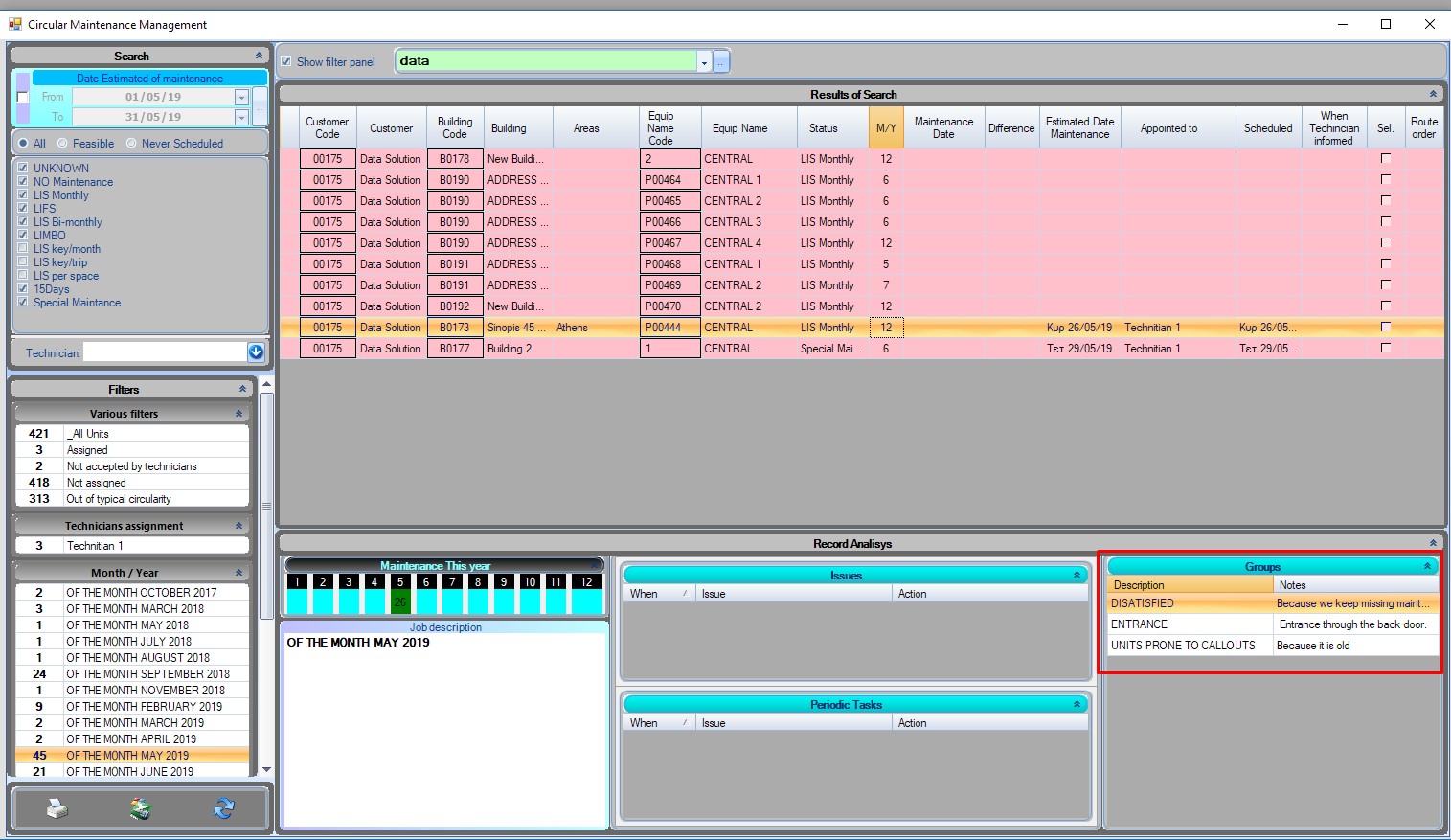
Within Circular maintenance management
Whenever you click inside a record in circular management it will display its customer/unit/building groups as well.
Κυκλική Διαχείριση
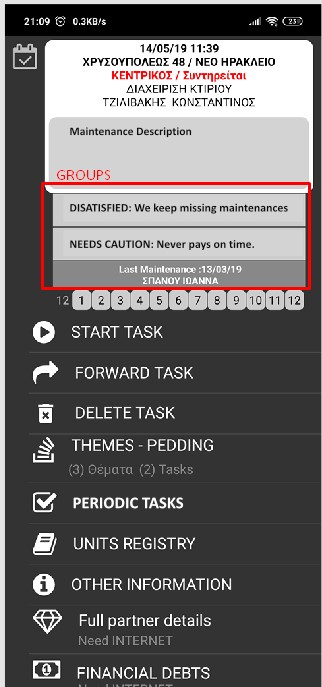
In the WinLift Next android application.
Inide WinLift Mobile Application when opening an elevator page.