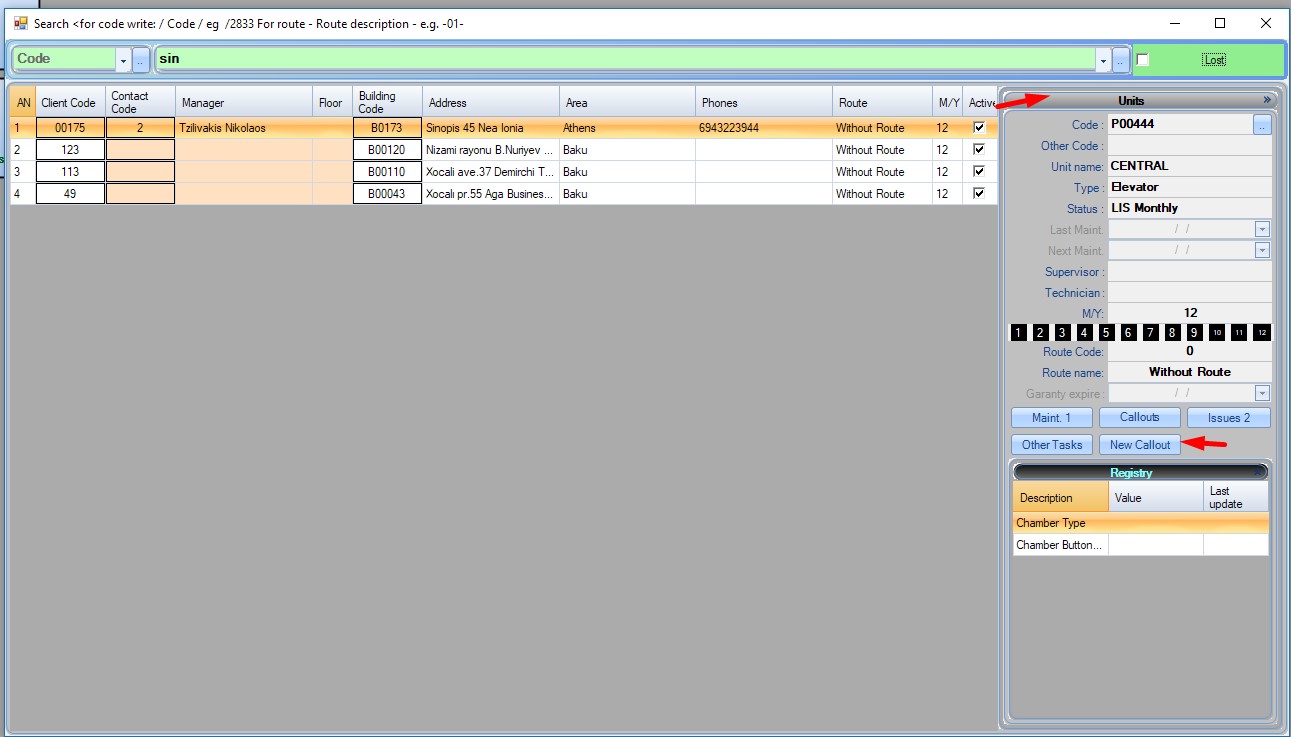
by clicking on the building details sidebar. See more about Main Search.
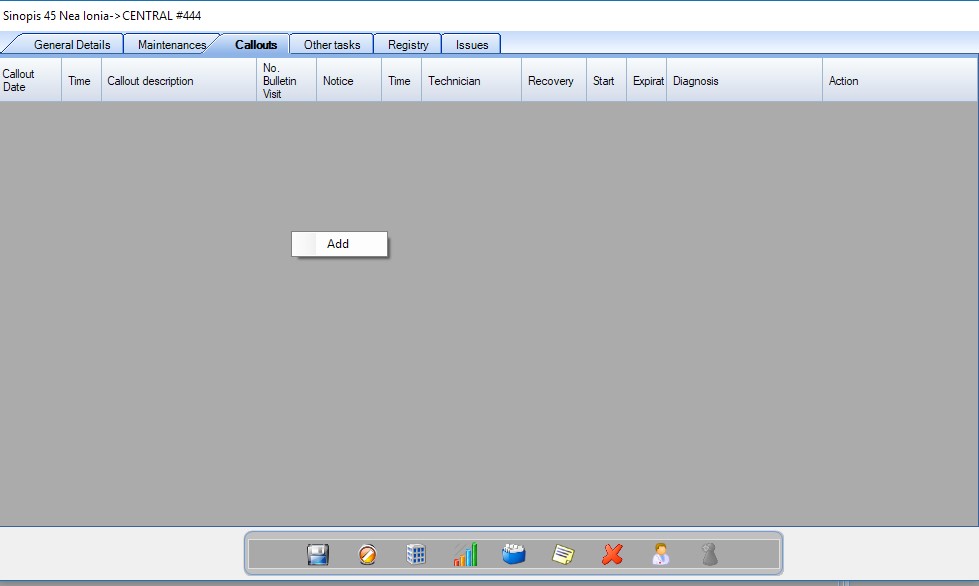
From the Unit/Lift's Form
by right clicking on the callouts table of the lift form.
From the main form
From the main form by clicking the add callout button. You will be prompted to select an elevator first. If a building has many elevators and you don’t know which elevator has the problem, just put a random elevator of the same building, and the technician will find out which elevator has the problem.
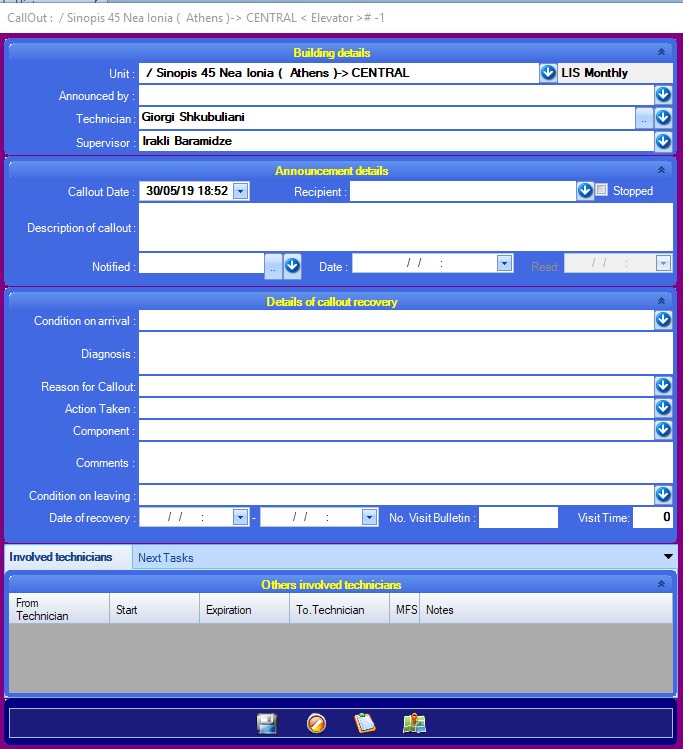
The callout form
Fields that must be filled when the callout opens.
These are the details that need to be filled for the callout to get created
Unit: The elevator.
Announced By: The person who made the call (free text).
Technician: The technician that performs the maitenance. This is filled in automatically, if the elevator has a technician.
Supervisor: The supervisor of the maintenance. It is filled automatically, if the elevator has a supervisor. I
Callout Date: The date the callout was registered.
Description of callout: A description of the callout.
Notified:The technician that will take perform the fix.
Date: When the technician was notified.
Optional fields:
Stopped: If the elevator has stopped and is not working.
Recipient: The person registering the callout.
Details of callout recovery.
For a callout to be considered closed and executed, you will have to set the condition on leaving as "Back to normal operation" and fill in the date of recovery "from" and "to".
Condition on arrival: The condition that the elevator was found.
Diagonis: Description of the problem (free text).
Reason for Callout [LIST]: The technical reason of the callout.
Action Taken [LIST]: The action that was taken to solve the problem.
Comments: Other information that we might want to fill in.
Component [LIST] : Affected component of the elevator.
Condition on leaving [LIST]:The state that the elevator/lift was left at.
Date of recovery:When the callout was performed. Start date – end date.
No. Visit Bulletin: If there is a printed document for the client after the repair of the callout, you can put its number there.
Normally, The callout's recovery details are being filled by the technican from the mobile application.
Other involved technicians
The technicians that were involved with this callout. If for example an appointed technician forwarded the callout to someone else, this will be registered here.
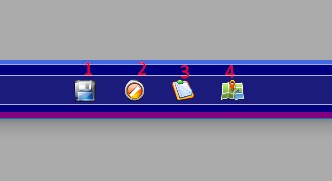
Other options
Save
Cancel
Add a new issue related to this callout and building,
See the building’s location on the map. The building must have been located first.