Contacts
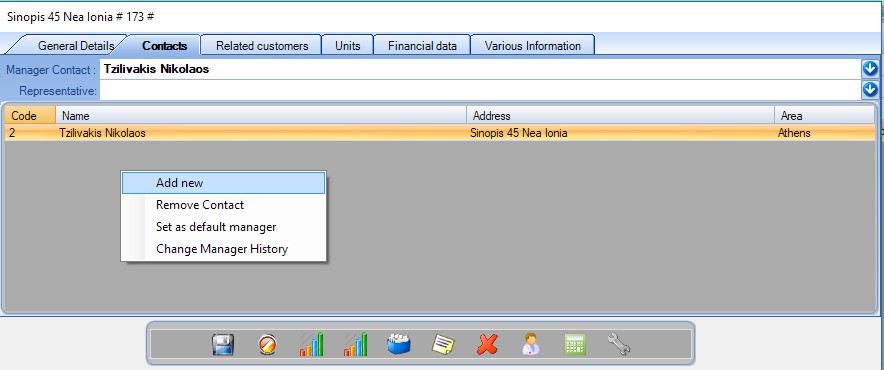
Contacts related to this building. You can add new contacts by right clicking on the respective table. You can select and add a contact as manager.
- Representative: A contact that you communicate with instead of the manager, if there is one.
Related Customers
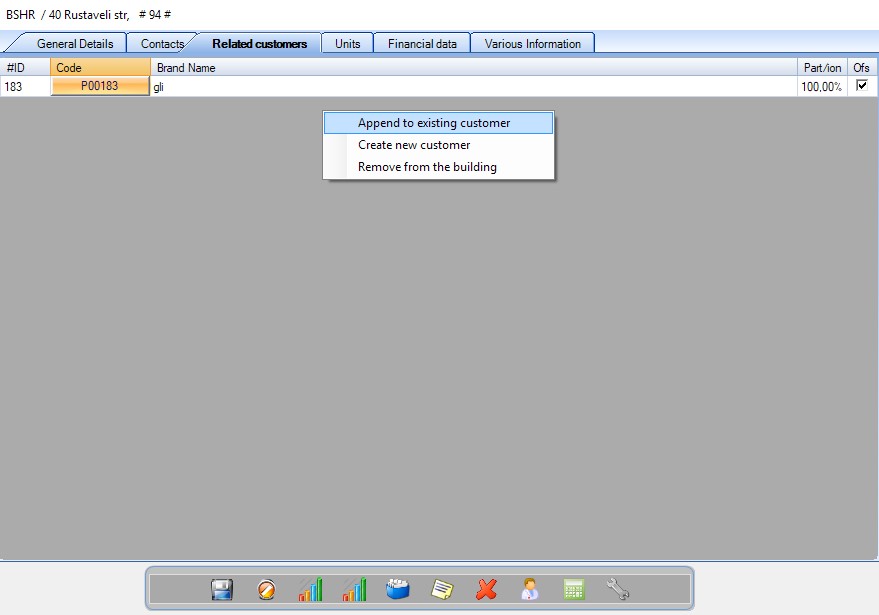
From this tab you can manage the customers of the building. By right clicking, you can transfer a building to another customer, or append more customers to the existing ones. Ticking the field “Ofs” indicates that this is the official customer.
Financial Data
Basics
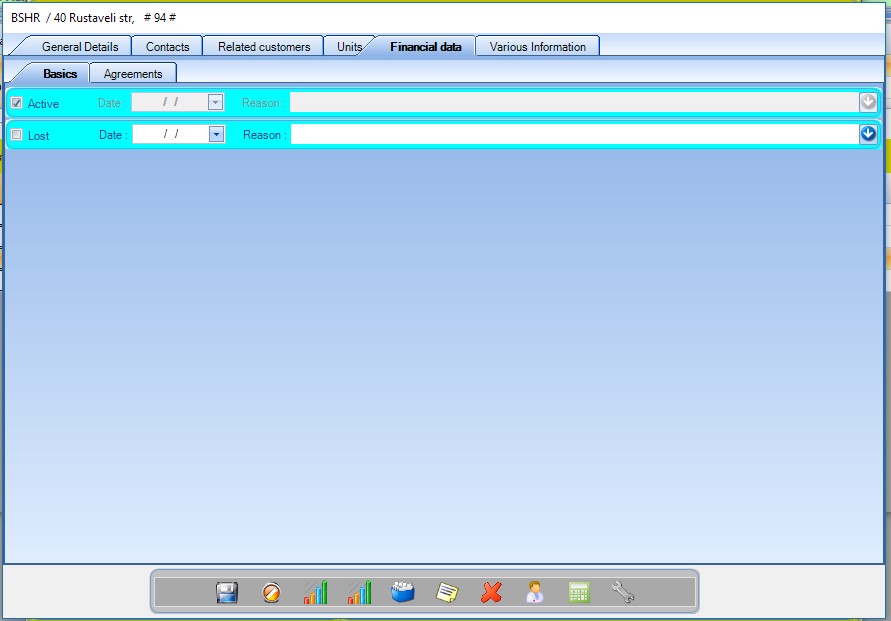
In the Basic+ version, the only existing option, is to indicate that this building is “lost” (inactive), meaning that you don’t manage it anymore. Use this option if you don’t want to delete it.
Agreements
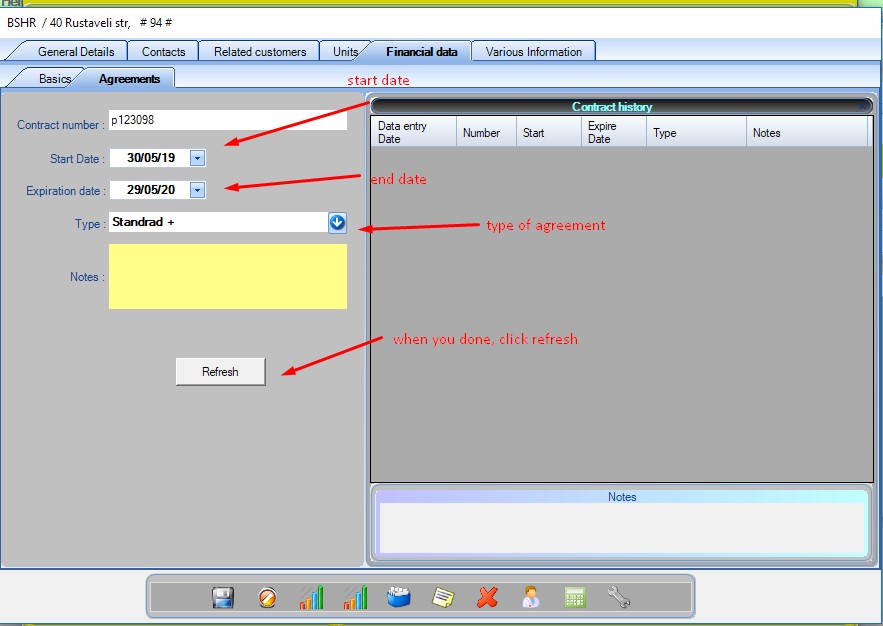
On the second tab you can manage the customer’s agreements (i.e. Maintenance subscription). When you have to renew it, select the next date and press “renew”. If you have any notes, you can add them in the “notes” section.

Save
Saves the form when you are done.

Cancel
Cancels your changes and closes the form.
Statistics
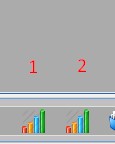
1.Generates a report of your callouts that resulted in this elevator to be out of order.
2. Generates a report of the number of callouts per month.
Document folder
Creates or finds a folder on your PC where you can save files. If you want to share the files, you need to enable network access.

History
Shows the history of every maintenance and callouts ever performed on the units of this building
Print Overall Report
Shows the history of maintenance and callouts on a specific date, formatted to be printed.

